 SpacesSync
 Beta · invite only
Multi-monitor Spaces, finally working.
Every Space switch on a multi-monitor Mac leaves half your workspace behind. SpacesSync ends that. Switch on one display, the others follow. Works with native macOS Spaces, doesn't rearrange your windows. Two-minute setup.
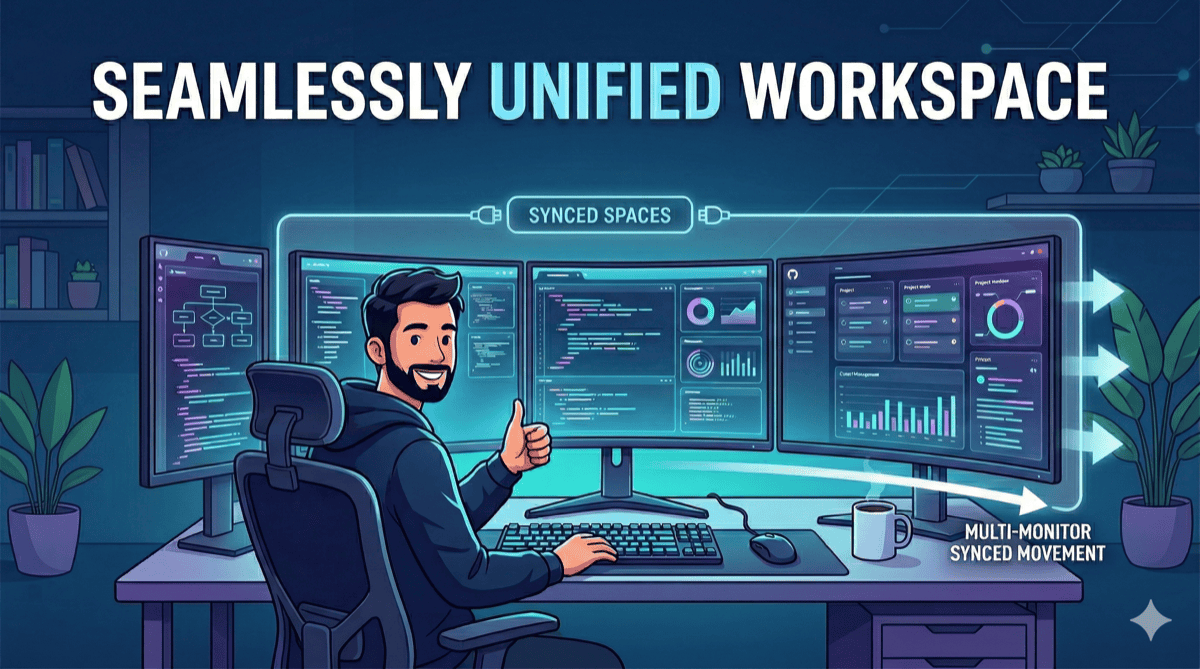
All your monitors on the same Space.
Free during beta.
$12.99 when 1.0 ships. Perpetual license, 3 Macs, 14-day refund.
We'll invite you to the beta if there's room, otherwise notify you when 1.0 ships. One email per real event — no drip.
Beta testers who report a bug or send useful feedback get a free 1.0 license. We reply within 24 hours.
brew tap toolgluelabs/tap
brew install --cask spacessync
Same cask, beta and stable. Today it installs the current beta; when 1.0 ships, the cask version bumps and your next brew upgrade picks it up. Tap publishes shortly.
What it does
- Real Spaces, synchronized. SpacesSync works with native macOS Spaces. It doesn't replace them, doesn't rearrange your windows, and doesn't require disabling System Integrity Protection.
- Per-group sync, not all-or-nothing. Pair the displays you want synchronized; leave the others independent. macOS has one built-in switch for this, and it's everything-or-nothing — why that isn't the answer.
- Named Spaces with an on-screen overlay. macOS calls them “Desktop 1, 2, 3.” SpacesSync lets you label each one (“Coding,” “Email,” “Reference”) and flashes the name on screen when you switch. You stop counting Spaces and start reading them.
- Install and forget. Set it up once, run in the menu bar. No daily interaction, no shortcuts to learn.
- Auto-update built in (via Sparkle). New macOS support arrives in point releases without any reinstall.
- Privacy-preserving if you care. Telemetry is on by default (it helps us catch crashes before you do) and a single switch in Settings turns it off. No account required, ever — email only at purchase, for license delivery.
Built for multi-monitor work
Every Space switch on a multi-monitor Mac leaves half your workspace behind. The screen you're not switching from stays on whatever it was — mid-thought, mid-debug, mid-project. SpacesSync ends that. Switch on one display, and the displays you've grouped with it follow.
You pick the groups. Pair the two screens holding your active project. Pair all four into one moving set. Leave a standalone monitor for Messages and music while the others cycle. Plug in or unplug a display mid-session and SpacesSync re-detects on the fly. See the example setups.
You name your Spaces. macOS gives you “Desktop 1, 2, 3.” SpacesSync lets you label each one (“Coding,” “Email,” “Reference”) and flashes the name on screen when you switch — so you read where you are instead of counting.
It stays out of the way. Runs in the menu bar. Works with native macOS Spaces, doesn't replace them, doesn't rearrange your windows, doesn't disable System Integrity Protection, doesn't require a logout to install. Two-minute setup, then it disappears.
You've felt this if…
Two or more monitors. You've noticed Spaces is broken across displays, and you want it fixed without rebuilding how you use your Mac.
- You remember when switching Space on one monitor switched all of them. You want that back — but you don't want the funky fullscreen-app side-effects.
- You keep a debugger on one screen and the runtime on another — or code and the docs you're implementing against, or a draft and its outline. Every Space switch breaks the pairing.
- You work your projects on multiple screens, but want a sidecar screen that stays visible and independent — Messages, Spotify, a reference doc that doesn't move when you do.
- An interruption hits (a Slack ping, a phone call, an urgent ask), and you need a fresh Space across both monitors to handle it cleanly, then swipe back to where you were.
Example setups
A sync group is a set of monitors that switch Spaces together. You pick which monitors go in which group. Any monitor not in a group stays standalone. Its Spaces switch on their own. You can have as many groups as you want.
All monitors synced, any count
- Space 1: Project 1
- Space 2: Project 2
- Space 3: Project 3
Switch on any monitor; they all follow. Add or remove a monitor, and the sync group keeps working.
Three monitors, one standalone + one sync group
- Space A: Messages, FaceTime
- Space B: Spotify
- Space 1: Project 1
- Space 2: Project 2
- Space 3: Project 3
Switch on the middle monitor and the right follows. Left stays put: your music keeps playing, your call stays visible.
Four monitors, two sync groups
- Space 1: Coding
- Space 2: Writing
- Space A: Reference
- Space B: Communications
Each group switches independently. Move group A through Coding and Writing without touching what group B is showing.
Status & availability
SpacesSync is in private beta as of June 2026. The 1.0 release is paid: $12.99 USD, perpetual license, three Mac activations per license, and a 14-day refund window through Lemon Squeezy if it isn't a fit.
Tested on macOS 15 Sequoia. Tahoe (macOS 26) is in active testing. We're prioritizing Tahoe support and expect 1.0.1 within a couple of weeks of Tahoe GA. Sparkle auto-update delivers it.
Beta builds are direct-download by request. Beta retires roughly six weeks after 1.0 ships so beta users move to the released build cleanly. Beta testers who report a bug or send useful feedback get a free 1.0 license. That's our thank-you for helping ship it.
Distribution at 1.0:
- Direct purchase via Lemon Squeezy. Perpetual license, 3-Mac activation, 14-day refund window.
- Setapp: in review for inclusion in the Setapp bundle. Setapp subscribers will be able to install at no additional cost once approved.
- Not on the Mac App Store. The work SpacesSync does requires private WindowServer APIs that the App Store review won't pass.
Common questions
- Why not just turn off “Displays have separate Spaces” in System Settings?
- Because that toggle is all-or-nothing, breaks full-screen apps on multi-monitor setups, and requires a logout to even try. With it off, every display has to be on the same Space at the same time — you lose the ability to keep one monitor on Messages while another cycles through project Spaces, you can't designate a reference monitor that holds still while you swipe, and the moment any app goes full-screen on one display, every other monitor goes black until you exit. The toggle also doesn't take effect until you log out and log back in, so you can't A/B it casually. SpacesSync keeps per-display Spaces working, lets you pick which displays sync (including leaving some standalone), and installs without ending your session. See example setups for what that looks like in practice.
- How does the refund work?
- 14 days, no questions. Full refund through Lemon Squeezy. The link is in your purchase email; you don't need to write to anyone.
- When will SpacesSync run on macOS 26 Tahoe?
- Auto-update handles it. You do nothing. Tahoe support ships in 1.0.1; your existing install picks it up via Sparkle.
- Can I see it running before I buy?
- Beta is invite-only right now and a public demo loop ships with 1.0. In the meantime, request a beta invite (above) or email and we'll send you a short Loom recording.
- Can I move my license to a new Mac?
- Yes. Each license covers 3 Mac activations. Deactivate one Mac from the menubar app and activate another whenever you want.
- What happens to my install if Tool Glue Labs disappears?
- License validation is fully offline after first activation. Your installed copy keeps working regardless of network, server, or business status. No phone-home, no kill switch.
- Family pack or team license?
- Not at launch. A single license covers 3 Macs, which fits most households. If you need more, email and we'll figure something out.
- Does it work with a closed laptop lid (clamshell mode)?
- Yes. SpacesSync follows whatever displays macOS reports. Close the lid with an external monitor connected and one display drops out of the sync group cleanly. Reopen and it rejoins.